Question
I’m a self-taught ACad user and have just learned the mere basics of the program to date. I am stumped on how to scale plots in paper space and it is driving me crazy. I know as soon as someone explains it to me it’ll come right back to me but right now am suffering from an acute case of brain-lock. Does anyone have any suggestions?
Forum Responses
(CAD Forum)
From contributor A:
There are many different ways. In paper space, select a viewport, right click properties. In the miscellaneous tab, under standard scales, select the one you want.
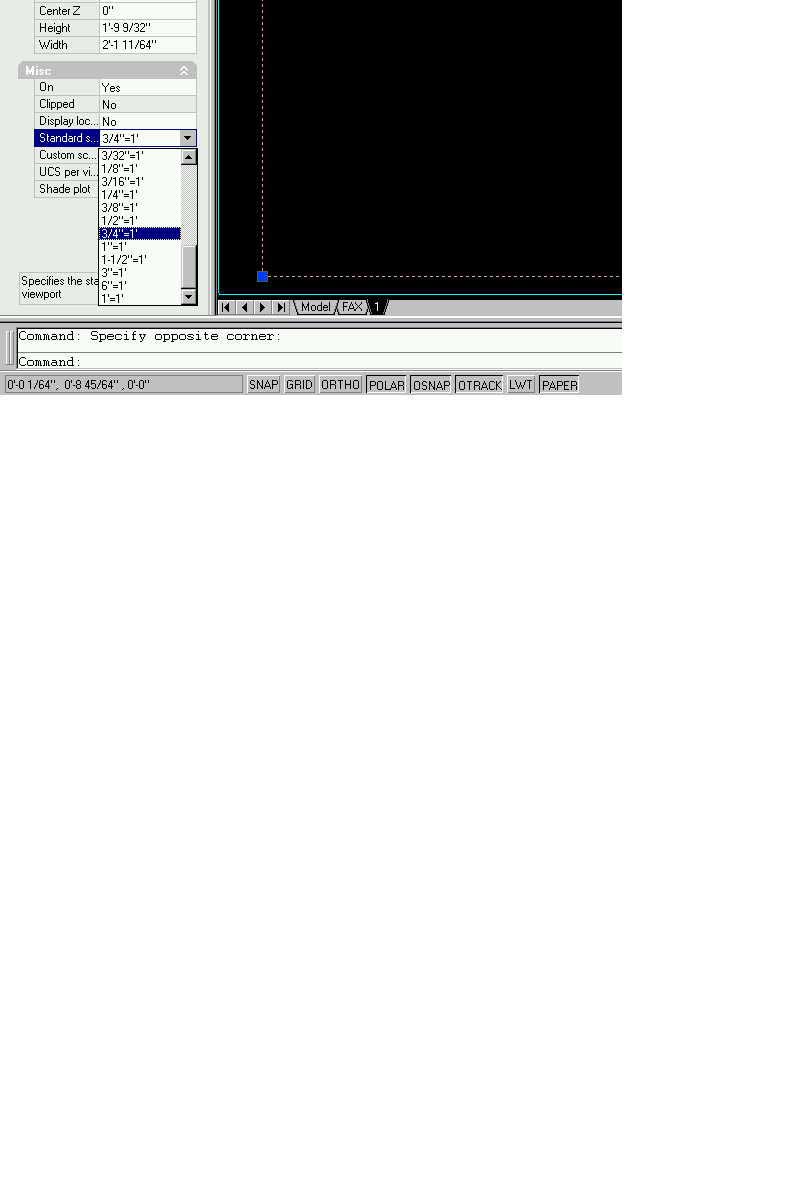
You usually will have to enter model space within the title block layout and pan the drawing to move it where you want it. If you ever zoom inside the title block layout remember to use the zoom 1/xp command again to make sure your plot is to scale. I create 1/2"-1', 1/4"-1' for "A" size and "D" size layouts for my Autocad template and just delete the ones I don't need whenever I start a new drawing.
I have tried scaling the layout as Contributor A indicated, and when I plotted the drawing it was always off just a little bit. When plotting in paper space the plot scale should be 1:1. The zoom xp command already scales the plot size for you. This took me some trial and error also and it all finally clicked. Now it takes me very little time to create a new title block to plot to scale if I need use something different from the usual 1/4 or 1/2 scale plots.
When you draw your title block you can set up the different variables as attributes so when you double click the title block in paper space the variables that change from drawing to drawing come up in a dialog box and you just type them in and they are changed in the paper space title block - things like drawing name, page number, customer name and address, etc. Hope this helps.
With the view ports layer active and paper space on, click on the “create new view port” button of the “view ports” tool bar and draw the view port on the page. Double click in the view port and model space will become active (you’ll notice the view port border goes bold). Zoom in the part of the drawing you want to display. On the view ports tool bar, use the drop down to select the specific scale you want. Fine tune the location with pan.
Once you’re happy with the scale, go back into paper space (by double clicking outside of the view port) now single click on the view port to select it. Right click to get to the context menu. Now go to “Display Locked” and select “Yes”. This allows you to zoom the drawing while in model space. If you don’t follow this last step, any notes etc. you made on the drawing in paper space will be come incoherent if you accidentally zoom while in model space.
Regarding dimensioning, I prefer to dimension in model space (so dims get updated during stretch among other reasons). In the dimension style dialogue box under the “fit” tab, select “scale dimensions to layout (paper space)”. On the “text” tab, enter the actual size you want the dimensions to appear (I prefer .1”). Now when you do your dimensions, the text will be the desired height no matter what scale you drawing is.
Now you need to set the scale. It is z enter, then a fraction number and the letters xp
Example:
z enter
1/8xp enter
This set the viewport at 1 1/2" = 1'
This is where people get confused - it is a ratio.
So 1 1/2" = 1' is really...
1 1/2" = 12"
12 / 1.5 = 8
So 1/8th is what you zoom by. 1/8xp
If you wanted 3/4" = 1'
then
3/4" = 12"
12 / .75 = 16
So 1/16th is what you zoom by. 1/16xp
You print full size: 1 to 1.
When you measure something in a viewport your dimension references the current dimension style. Primary units, measurement scale – this is in your dimenstyle manager. The geometry factor should match your viewport. If it is set to 1 then what ever you measure will be multiplied by one and you will get the actual distance. If you put a lager number in that box, then your value measure will be multiplied by it and then display you a larger number.
Let's say you created a viewport that is 1 1/2" = 1'.
That is 1 1/2" = 12"
To do this you will have done a zoom, 1/8xp
In paperspace, what you see will be 1/8 of its original size.
So an item that is full size in modelspace will be 1/8 its size in the viewport. If you measure that, then your dimension will be 1/8 too small. But if you change the dimension style to match, by adding an 8 in that box, it will return a number 8 times larger, which will be correct. Get your head around this and everything is a breeze after that.
If I need 1/128"=1'0" I can zoom xp for it.